
The connection takes about 10 minutes, on a computer. It is done on Meta, the company that owns WhatsApp: TheChats.me opens Meta’s window and receives the authorization at the end. It uses the official WhatsApp API (WhatsApp Cloud API).
Before you start
- Choose the number. It can be a new number (mobile or landline) or a number that is already in your Facebook Business.
- The number cannot be in use in the WhatsApp or WhatsApp Business app. Use another number or first delete the account in the app settings. A number only works in one place at a time, and deleting the account deletes the conversations saved on the phone.
- Have that number’s phone at hand: Meta sends a code by SMS or call.
- Allow pop-up windows for app.thechats.me in your browser. Meta opens the connection in a separate window.
In TheChats.me
- In Channels, on the WhatsApp card, click Connect.
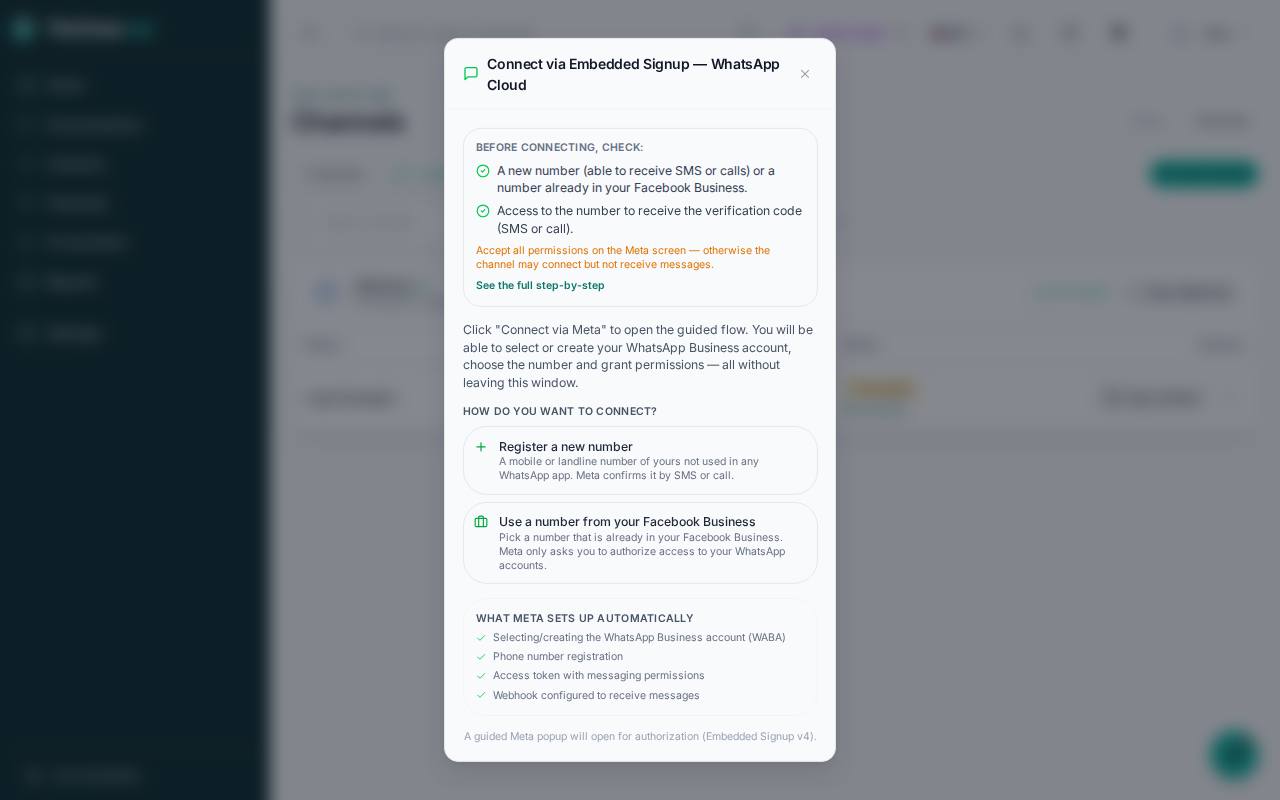
- Choose Register a new number or Use a number from your Facebook Business.
- Click Connect via Meta and do not close TheChats.me while Meta’s window is open.
In Meta’s window
- Sign in with your Facebook account. It must be someone who manages the business on Meta.
- Choose your company’s business portfolio, or create one with the company name and e-mail.
- Choose or create the WhatsApp Business account.
- New number: type the number and the name customers will see, and confirm with the code. Number from Facebook Business: choose it from the list.
- Accept all the permissions through to the end. If you decline any, the channel may stay connected and not receive messages.
After connecting
- If you have several numbers, choose in TheChats.me the ones you want to connect. Each number becomes a channel.
- Send a message from your personal phone to the number. It appears in Conversations within seconds.
- In Channels, in the AI answers column, choose whether the AI answers this number.
The 24-hour rule: you can reply freely up to 24 hours after the customer’s last message. After that, only with a template approved by Meta. See The 24-hour window and WhatsApp templates.
If something goes wrong
- Meta’s window does not open: the browser blocked the pop-up. Allow pop-ups for app.thechats.me and click Connect via Meta again.
- Meta says the number is already registered: the number is in use in a WhatsApp app. Delete the account in that app or use another number.
- The code does not arrive: ask for the code by call instead of SMS. On a landline, it only works by call.
- The number shows as Not verified or cannot be chosen: Meta has not confirmed that number yet, or it has been blocked. Resolve it in WhatsApp Manager, at business.facebook.com, and connect again.
- It connected, but messages do not arrive: probably a permission was left unaccepted. In Channels › Manage, open the channel under Configure and, in Credentials, connect again through Meta, accepting all permissions.