
Each connection takes about 5 minutes, on a computer, and is done in Meta’s window. After that, Instagram direct messages and messages sent to your Facebook Page arrive in Conversations, alongside the webchat and WhatsApp.
Instagram: before you start
- The Instagram account must be professional (Business or Creator). You change this in the Instagram app settings.
- Link Instagram to a Facebook Page, in the Page settings (linked accounts), and make sure you are an administrator of that Page.
- In Instagram, in the message settings, turn on access to messages for connected tools. Without this the channel connects but receives nothing.
Messenger: before you start
- Have a Facebook Page. A personal profile does not work.
- Make sure you are an administrator of that Page.
For both: allow pop-up windows for app.thechats.me in your browser.
Connect
- In Channels, on the Instagram or Messenger card, click Connect.
- Click Connect via Meta and do not close TheChats.me while Meta’s window is open.
- Sign in with the Facebook account that administers the Page.
- If Meta shows a previous connection and offers to continue, choose to edit the settings so you can confirm the accounts.
- Choose the Instagram account and the linked Page (or, for Messenger, the Page that will receive the messages).
- Accept all the permissions through to the end.
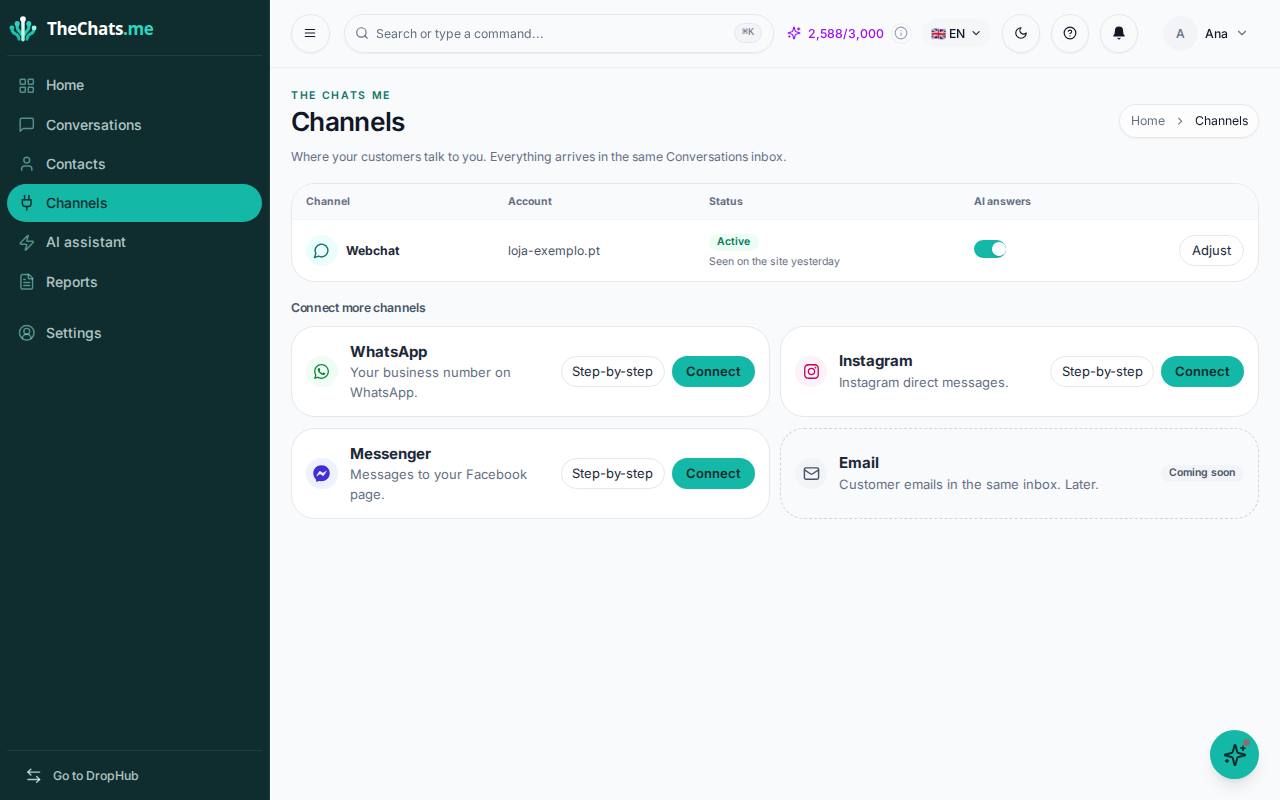
After connecting
- If you have more than one account or Page, choose in TheChats.me which one you want to connect.
- Test it: send a direct message from another Instagram account to yours, or a message to the Page from another Facebook account. It appears in Conversations.
- You can reply up to 24 hours after the customer’s last message. After that, the conversation reopens when the customer writes again.
- For now only messages arrive. Comments on posts stay on Instagram and Facebook.
If something goes wrong
- The Instagram account does not show up: the account is not professional or is not linked to the Page you chose. Fix it in Instagram and connect again.
- The Page does not show up: you are not an administrator of that Page, or you did not choose it in Meta’s window. Connect again and edit the settings to choose it.
- It connected, but messages do not arrive: in Instagram, turn on access to messages for connected tools. On both channels, check that you accepted all permissions. To connect again: Channels › Manage › Configure › Credentials.
- Another account got connected: connect again and, in Meta’s window, edit the settings to choose the right account.
- Meta’s window does not open: allow pop-ups for app.thechats.me and click Connect via Meta again.