
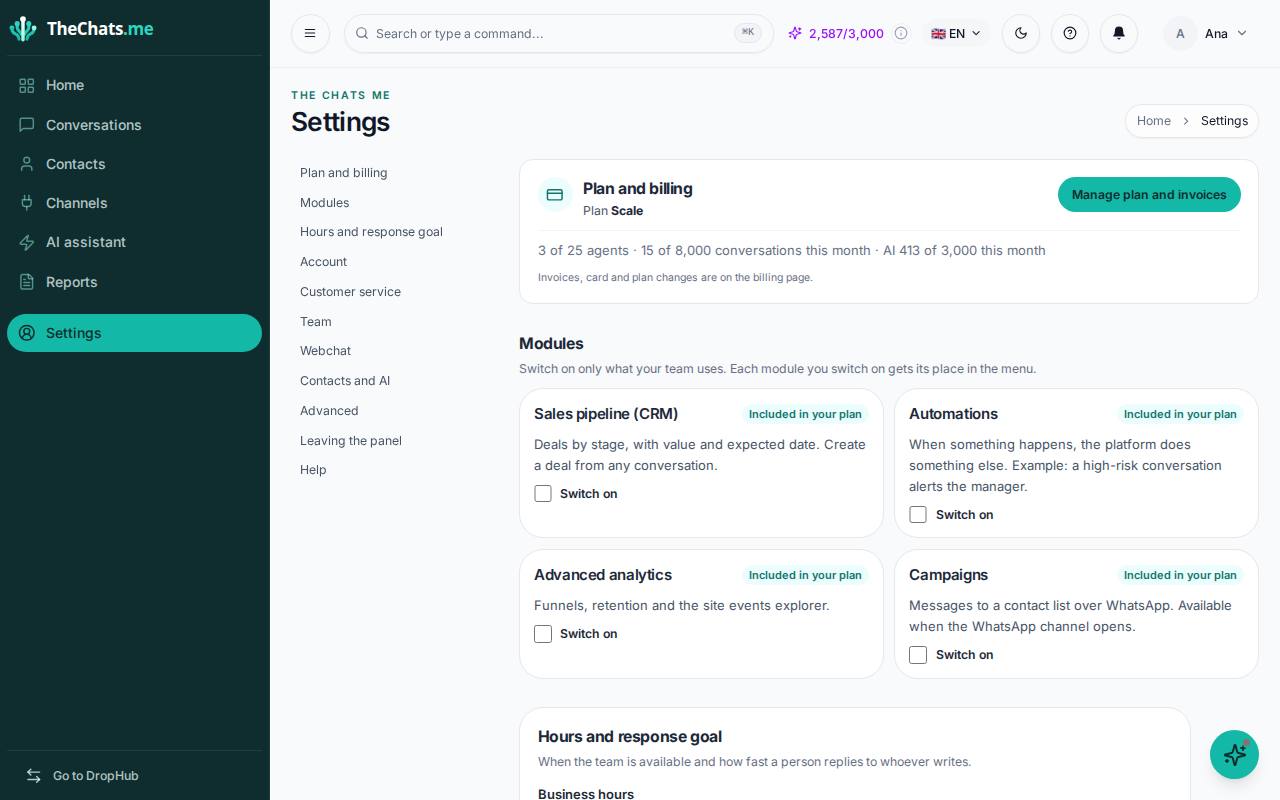
Settings holds your plan, modules, hours and the rest of the account settings. Only the people who manage the account (owner or administrator) can change the plan and the team.
Invite your team
- In Settings, in the Team group, open Users.
- Click New User.
- Fill in the Name and E-mail. The Password is optional: leave it blank to generate one automatically.
- Choose the Role:
- Administrator: manages the account, the team and the settings.
- Manager: follows the team and sees the reports.
- Agent: answers conversations.
- Choose the Queues the person works in. The AI also uses queues to route conversations.
- Click Create User.
The number of agents depends on your plan.
Hours and response goal
In Hours and response goal you say when your team is available and how fast you want to answer people who write to you.
- Click Set hours and choose the opening and closing times for each day, and the Time zone.
- Set the response goal.
The conversation clock uses this goal. If no hours are set, the goal counts the whole day.
Modules
In Modules you switch parts of the panel on or off, such as CRM or Automations. Each module you switch on gets its place in the menu. Modules that are not in your plan show Not in your plan.
Plan and billing
In Plan and billing you see your plan and what it includes. Manage plan and invoices opens the page where you change plan, update your card and download invoices. If a payment is overdue, a warning asks you to update your card.
Everything else
The remaining settings are grouped:
- Account: your profile and company settings.
- Customer service: queues, quick replies, message templates, tags, schedules and SLA.
- Team: users and audit log.
- Webchat: Smart Triggers and site audit.
- Advanced: integrations and webhooks.
- Help: support requests.