
Conversations is where messages from your website chat, WhatsApp, Instagram and Messenger arrive. The AI answers the ones it can; the rest wait for your team.
Find the right conversation
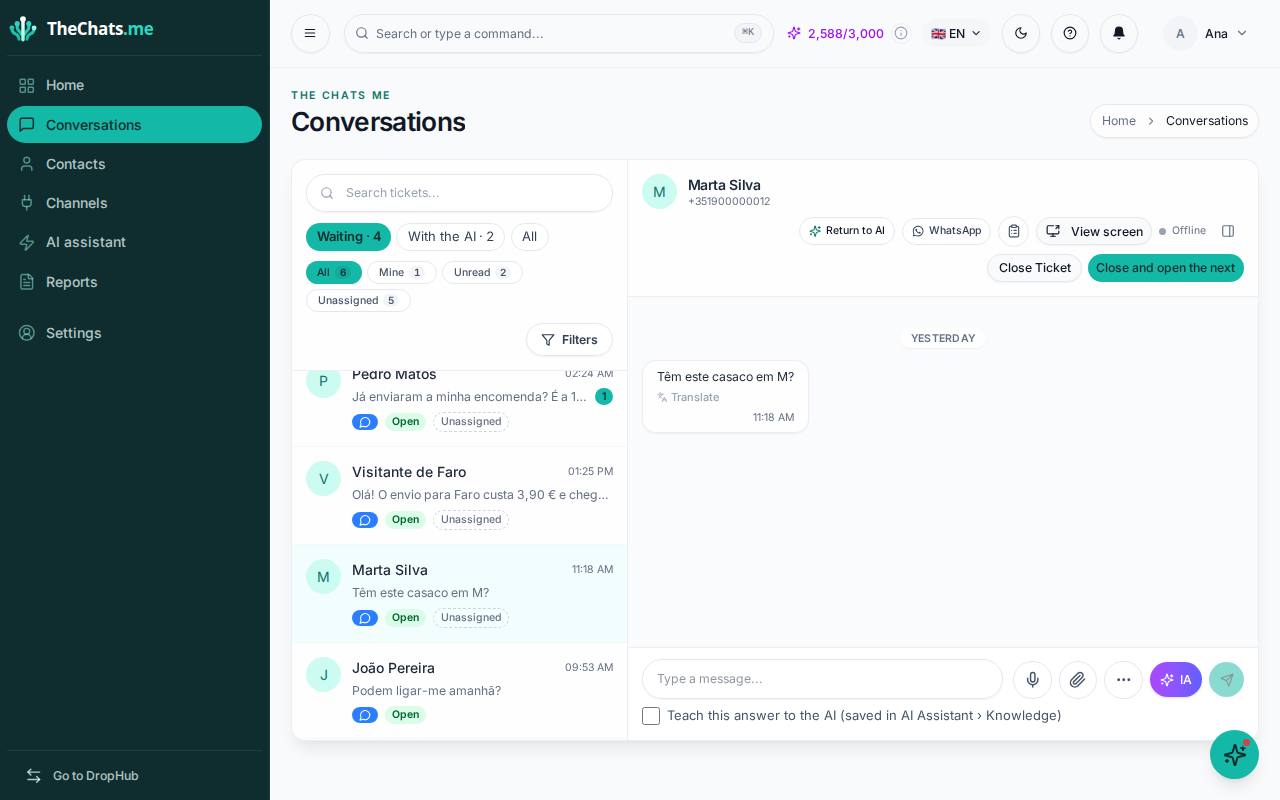
- Waiting: conversations that need your team.
- With the AI: conversations the AI is answering right now.
- All: everything.
Below the tabs there are the filters All, Mine, Unread and Unassigned. Use Filters to narrow down by channel, queue, assignee, tag or period. Search looks by name, number or conversation content.
Reply
- Click a conversation to open it.
- Type your reply and press Enter.
- The AI button suggests a reply for you to review before sending.
You can also attach files, record audio and translate the message. More actions (the … button) includes Schedule message, Share product and Open AI analysis, among others.
Take over a conversation from the AI
While the AI is answering, the conversation appears in With the AI, in the The AI is handling group. Click Take over to reply yourself. The AI stops answering that customer until you hand the conversation back.
Teach the AI
Below the reply box, tick Teach this reply to the AI before you send. The reply is saved in AI Assistant › Knowledge, and next time the AI will know how to answer.
Return to the AI and close
- Return to AI: when you are done, the AI answers this customer again. The conversation stays pending, with no assignee.
- Close Ticket: closes the conversation. Close and open the next closes it and immediately opens the next one waiting.
About the contact
On the right you see the contact’s details, score, earlier conversations and DropHub orders. This is also where you choose the assignee and the queue.
Keyboard shortcuts
| Key | Does |
|---|---|
| ↑ ↓ | Previous / next conversation |
| E | Close and open the next |
| R | Reply |
| A | Assign to me |
| / | Search the queue |
| Ctrl K | Search contacts, conversations and pages |
| ? | Show this list |
Shortcuts work outside text fields.