
DropHub brings your catalog together in one place and sends it to the stores and marketplaces where you sell. To open it, click Go to DropHub at the bottom of the panel menu.
Everything you connect is in Connections.
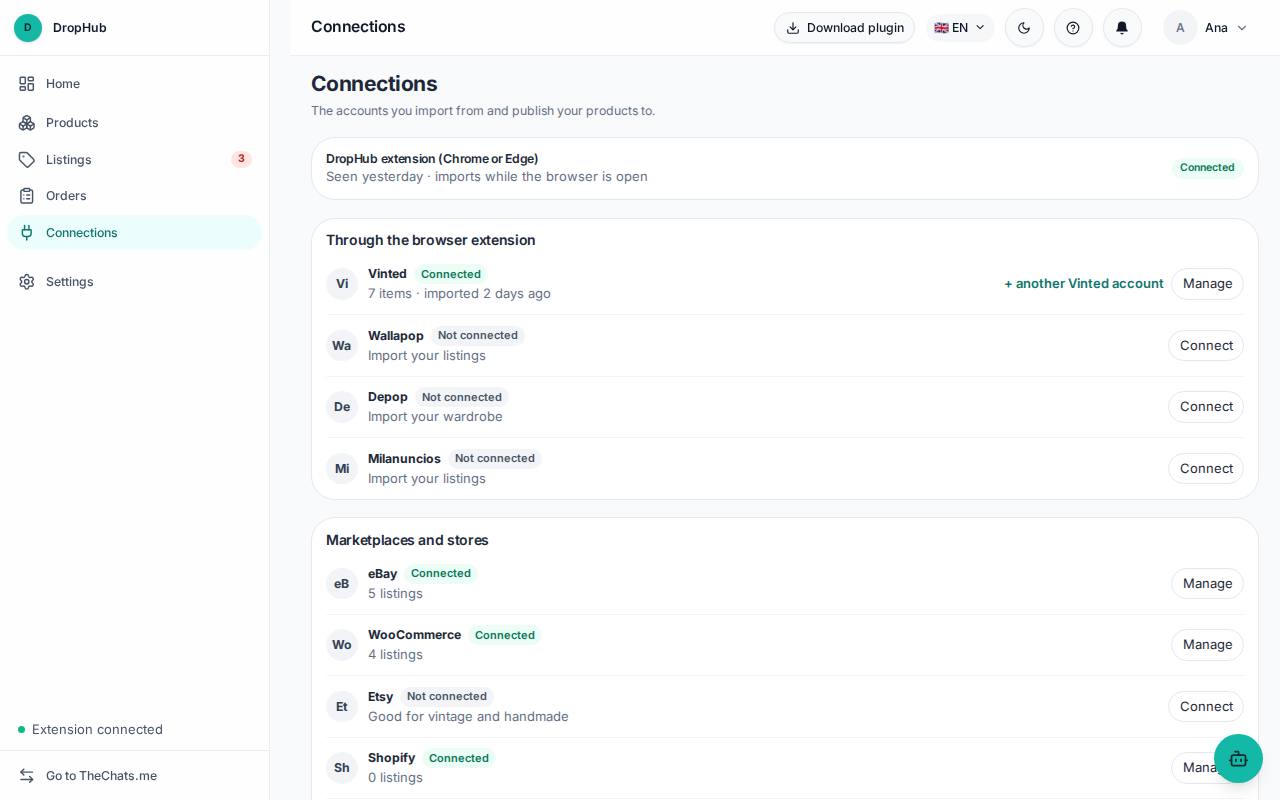
WooCommerce store
- In Connections, on the WooCommerce card, click Connect.
- Type Your store’s address (for example, mystore.com).
- We open your store: sign in as a WordPress administrator and click Approve.
- You come back to DropHub automatically, with no keys to copy.
Shopify store
- On the Shopify card, click Connect.
- Type the address that ends in .myshopify.com (you find it in Settings → Domains in Shopify).
- In Shopify, sign in to your account and click Install to approve DropHub.
Marketplaces with a store key
- Mirakl (Worten, Leroy Merlin and others): connect with your store key for each one.
- PrestaShop: connect with an API key.
- BigCommerce: connect with your store token.
- eBay and Etsy: click Connect and sign in to your seller account to authorize DropHub.
- Amazon: click Connect and follow the steps for your European Amazon seller account.
You can connect more than one account of the same marketplace with + another account.
Vinted, Depop, Wallapop and Milanuncios (extension)
These marketplaces connect through the DropHub extension for Chrome or Edge, which uses your browser session. It is not an official integration with those marketplaces, and DropHub never asks for or stores their password.
- In Connections, on the DropHub extension (Chrome or Edge) card, click Install the extension and add it to your browser.
- On the marketplace card (Vinted, Depop, Wallapop or Milanuncios), click Connect. The Installations screen opens.
- Click Generate Code.
- Stay signed in to the marketplace in that browser. Open the extension and click connect (+).
- Paste the code: the connection appears in DropHub automatically.
The extension imports while the browser is open.
The status of each connection
- Connected: it is working.
- Session ended or Reconnect: the authorization has expired; click Reconnect.
- Not connected: you have not connected it yet.
Do you sell somewhere that is not on the list? Click I want this on the card, or tell us where in Selling somewhere else?.
Once you are connected, see DropHub: products, sending to channels and orders.