
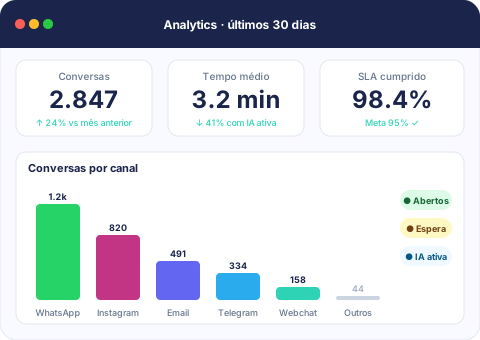
Many people who run an online store keep ChatGPT open all day, to write a product description, check an email or plan the week. But to see how customer service is going, they still have to open another panel, find the queue and build the report by hand. Now you can ask ChatGPT directly. TheChats.me connects to it, and ChatGPT answers with the real data from your conversations.
What changes in practice
The connection uses the Model Context Protocol (MCP), the standard ChatGPT uses to talk to other tools. Once connected, ChatGPT can look up the conversations your team handles on WhatsApp, Instagram, Messenger and your website chat, and answer in plain language.
A few things you can ask:
- “Which conversations have been waiting for a reply the longest?”
- “Did any conversation miss its response deadline today?”
- “How did last week go: how many conversations came in and what was the response time?”
- “Show me the team’s tasks that are still open.”
- “How is the campaign we sent yesterday doing?”
ChatGPT also sees contacts, message history, tags, scheduled messages and quick replies. For whoever runs the operation, that makes for a quick start to the day: one question gets you a summary of what needs attention, without switching tabs.
Read-only, for now
In this first version, ChatGPT only looks things up: it does not send messages or change anything in TheChats.me. There are no tools to delete data, manage users or change account settings either.
Acting from ChatGPT, such as replying to a customer, assigning or closing a conversation and adding tags, is planned for a later version, and it will always ask for your confirmation before anything changes.
A useful assistant does not have to do everything on its own. It has to show you quickly what needs you.
How to connect
You connect with the address https://api.thechats.me/api/mcp and the login of your TheChats.me account. You don’t copy a password or a key.
- TheChats is not in the ChatGPT app list yet. Until it is, add it as a custom connector in developer mode, if your ChatGPT account allows it. Use the address above, with OAuth authentication.
- ChatGPT opens the TheChats.me authorization page. Sign in, check the permissions it asks for and click Allow.
- Ask your first question in a chat, for example: “Which conversations have been waiting for a reply the longest?”
The full step-by-step guide, with the list of tools and fixes for the most common problems, is in the connection guide.
Security: ChatGPT acts as you, with your permissions
ChatGPT acts as the person who connected it, with the same role and permissions that person has in the panel. An agent sees what an agent would see, and a manager sees what a manager would see. Nobody sees another company’s data.
A few more points for whoever is responsible for customer data:
- Every call goes into the company audit log, with the tool used, the parameters, the duration and the result. Message content is not stored in that log.
- Access expires on its own. The token lasts one hour and is renewed while the connection is in use. After 30 days without use, you need to connect again.
- To cut off access, remove the connection under Settings → Connected apps in TheChats.me, or in ChatGPT’s own settings.
Available on the Free plan too
The ChatGPT connection works on every plan, including Free. Free has a limit of up to 20 requests per minute per connection. That is enough for one person asking questions through ChatGPT day to day.
Paid plans have a higher limit and let you create API keys to connect other tools, such as your own scripts. See what each plan includes on the pricing page.
Wrapping up
Customer service still happens in TheChats.me, with your team, your queue and each customer’s history. What changes is that you no longer have to open the panel to see what is pending. You just ask the ChatGPT you already use.
Create your free account, connect your store’s channels, then link ChatGPT in a few minutes.